
Implementasi Animasi di Flutter dengan Rive: Membuat Interactive Motion Graphics
Flutter menyediakan berbagai cara untuk membuat animasi, mulai dari implicit animation hingga explicit animation dengan AnimationController. However, when we need complex and interactive animations—animations that change based on application state or user input—we require a more powerful tool. This is where Rive becomes the right solution.
Rive is a tool for creating interactive animations that can be embedded directly into Flutter. Unlike Lottie, which is more suitable for one-shot animations, Rive enables us to create motion graphics that respond to user input in real-time. The main feature that makes Rive special is the State Machine, which we will learn about in this article.
Memahami Konsep State Machine di Rive
State Machine adalah konsep fundamental dalam Rive yang memungkinkan animasi transisional berbasis kondisi. Bayangkan sebuah button pada aplikasi. Button tersebut memiliki beberapa state: default, pressed, disabled, dan loading. Setiap state memiliki timeline animasi sendiri yang berjalan independen.
State Machine consists of states and transitions. State is a specific condition of the animation, while transition is the rule for when the animation moves from one state to another. Transitions are triggered by inputs—for example, boolean isTap, isHover, or isLoading.
The main advantage of using State Machine is the separation between animation logic and application logic. Artists can design animations in the Rive editor without writing code, while developers simply trigger the corresponding state from Flutter. This workflow enables more efficient collaborative development between designers and developers.
Berikut visualisasi alur State Machine:
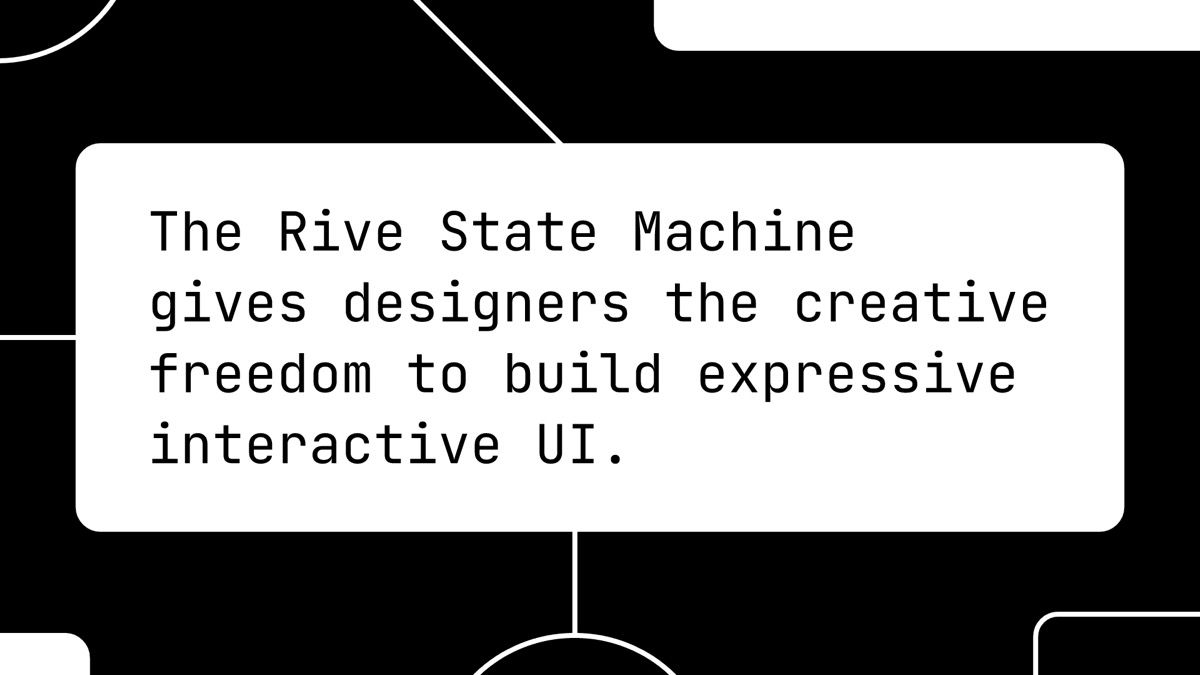
Diagram transisi State Machine: Input (seperti tap atau hover) memicu transition yang memindahkan state dari Idle ke Hovered, kemudian ke Pressed. Sumber: [Rive Blog - A beginner's guide to the Rive State Machine](https://rive.app/blog/how-state-machines-work-in-rive)
Berikut cara load file .riv dan menampilkan Rive animation widget di Flutter:
import 'package:flutter/material.dart';
import 'package:rive/rive.dart';

class RiveAnimationWidget extends StatefulWidget {
  const RiveAnimationWidget({super.key});

  @override
  State<RiveAnimationWidget> createState() => _RiveAnimationWidgetState();
}

class _RiveAnimationWidgetState extends State<RiveAnimationWidget> {
  Artboard? _artboard;
  StateMachineController? _controller;

  @override
  void initState() {
    super.initState();
    _loadRiveFile();
  }

  Future<void> _loadRiveFile() async {
    final file = await RiveAsset.asset('assets/animations/rive_anim.riv').load();
    final artboard = file.mainArtboard;
    final controller = StateMachineController.fromArtboard(
      artboard,
      'StateMachine 1',
      onStateChange: (stateMachineName, stateName) {
        debugPrint('State changed to: $stateName');
      },
    );

    if (controller != null) {
      artboard.addController(controller);
      setState(() {
        _artboard = artboard;
        _controller = controller;
      });
    }
  }

  @override
  void dispose() {
    _controller?.dispose();
    super.dispose();
  }

  @override
  Widget build(BuildContext context) {
    return _artboard != null
        ? Rive(artboard: _artboard!)
        : const CircularProgressIndicator();
  }
}
Pada code di atas, StateMachineController mengambil kontrol penuh terhadap animasi Rive. Controller ini memungkinkan listening terhadap perubahan state melalui callback onStateChange, yang sangat berguna untuk sinkronisasi dengan business logic aplikasi.
Setup Project Flutter dengan Rive Package
Before starting with Rive, we need to set up the Flutter project by adding the required package. The rive package is the main package that must be installed. Berikut langkah-langkahnya.
First, add the rive dependency to the pubspec.yaml file:
dependencies:
  flutter:
    sdk: flutter
  rive: ^0.13.0
Advanced Flutter State Management with BLoC
Master advanced Flutter state management by building a production-ready applicat...
After that, run flutter pub get to download the package. Ensure the .riv file is placed in the assets/animations/ directory. If you do not have a .riv file yet, you can download sample files from the official Rive documentation or create your own using the Rive editor.
In Flutter code, we need to initialize the Artboard and Controller. An important difference to understand is between AnimationController and StateMachineController. AnimationController is used to control animations manually, while StateMachineController is used when we want animations to be controlled by a state machine created in the Rive editor.
A well-structured project separates assets, code, and logic clearly. Here is the recommended structure for a Flutter project with Rive:
lib/
├── main.dart
├── screens/
│   └── animation_demo_screen.dart
├── widgets/
│   └── rive_animation_widget.dart
└── controllers/
    └── rive_controller.dart
This separation facilitates code maintenance, especially when the application has many Rive animations spread across various screens.
Membuat Interaksi Tap dengan State Machine
Interaksi tap adalah salah satu use case paling umum dalam mobile app development. Bayangkan button yang berubah tampilan ketika ditekan, atau sebuah card yang melakukan expand saat di-tap. Dengan State Machine, transisi animasi yang smooth dan interaktif dapat dibuat dengan mudah.
The basic concept is: we define an input trigger in the Rive editor—for example, isTap as a boolean input. From Flutter, we simply change that input value through the controller, and Rive will automatically perform the transition to the appropriate state.
Berikut contoh implementasi interaksi tap dengan State Machine:
class TapInteractionDemo extends StatefulWidget {
  const TapInteractionDemo({super.key});

  @override
  State<TapInteractionDemo> createState() => _TapInteractionDemoState();
}

class _TapInteractionDemoState extends State<TapInteractionDemo> {
  late StateMachineController _controller;
  late SMIBool _tapInput;

  @override
  void initState() {
    super.initState();
    _initRiveController();
  }

  Future<void> _initRiveController() async {
    final file = await RiveAsset.asset('assets/animations/button_anim.riv').load();
    final artboard = file.mainArtboard;
    _controller = StateMachineController.fromArtboard(artboard, 'ButtonStateMachine');

    if (_controller != null) {
      _tapInput = _controller.findInput<bool>('isTap') as SMIBool;
      artboard.addController(_controller);
      setState(() {});
    }
  }

  void _onTapDown(TapDownDetails details) {
    _tapInput.value = true;
  }

  void _onTapUp(TapUpDetails details) {
    _tapInput.value = false;
  }

  void _onTapCancel() {
    _tapInput.value = false;
  }

  @override
  void dispose() {
    _controller.dispose();
    super.dispose();
  }

  @override
  Widget build(BuildContext context) {
    return GestureDetector(
      onTapDown: _onTapDown,
      onTapUp: _onTapUp,
      onTapCancel: _onTapCancel,
      child: _controller != null
          ? Rive(artboard: _controller.rootArtboard)
          : const SizedBox.shrink(),
    );
  }
}
Pada contoh di atas, SMIBool merepresentasikan input boolean dari Flutter ke Rive. When the user performs a tap, we change the value of _tapInput.value to true, and Rive will trigger the corresponding transition in the State Machine. We also need to handle onTapCancel to ensure the state returns to the initial condition when the tap gesture is cancelled.
Integrasi Rive Animation dengan Business Logic Aplikasi
In real applications, animations do not stand alone—animations must be synchronized with the application state. For example, a loading animation must stop when data has been successfully fetched, or a success animation must run when a transaction is successfully processed. Good integration between Rive and state management makes the application feel more professional.
The recommended approach is to separate animation logic from UI widgets using Provider or Bloc. This way, the Rive state machine becomes part of the application state, not just a visual decoration.
Berikut contoh integrasi Rive dengan Provider untuk animasi loading:
class LoadingAnimationController extends ChangeNotifier {
  StateMachineController? _riveController;
  SMIBool? _isLoading;
  SMIBool? _isSuccess;
  SMIBool? _isError;

  bool _loading = false;
  bool get isLoading => _loading;

  Future<void> initialize(Artboard artboard) async {
    _riveController = StateMachineController.fromArtboard(artboard, 'LoaderState');
    _isLoading = _riveController?.findInput<bool>('isLoading') as SMIBool?;
    _isSuccess = _riveController?.findInput<bool>('isSuccess') as SMIBool?;
    _isError = _riveController?.findInput<bool>('isError') as SMIBool?;
    artboard.addController(_riveController!);
  }

  void setLoading(bool value) {
    _loading = value;
    _isLoading?.value = value;
    _isSuccess?.value = false;
    _isError?.value = false;
    notifyListeners();
  }

  void setSuccess() {
    _loading = false;
    _isLoading?.value = false;
    _isSuccess?.value = true;
    _isError?.value = false;
    notifyListeners();
  }

  void setError() {
    _loading = false;
    _isLoading?.value = false;
    _isSuccess?.value = false;
    _isError?.value = true;
    notifyListeners();
  }

  @override
  void dispose() {
    _riveController?.dispose();
    super.dispose();
  }
}
Dengan controller ini, animasi dapat di-trigger dari anywhere dalam aplikasi. For example, when making an API call, we set the state to loading. When successful, we set success. When an error occurs, we set error. Animation serves as visual feedback that mirrors the application state—providing users with information about what is happening without needing to read text.
Beberapa edge case yang perlu di-handle adalah dispose controller ketika widget di-unmount, handle missing assets jika file .riv gagal di-load, dan ensure thread safety ketika mengubah input state dari berbagai source.
Best Practices dan Performance Considerations
Rive adalah tool yang powerful, tetapi dengan power comes responsibility. Berikut beberapa best practices yang perlu diperhatikan agar aplikasi tetap performan.
First, do not load too many Rive widgets on a single screen. Each Rive widget has an Artboard and Controller that consume memory. If you have a list with many items that each have Rive animations, consider using a single Rive widget with multiple artboards, or switch to Lottie for non-interactive animations.
Use const constructor for Rive widgets if the asset is static. This helps Flutter perform optimizations on the rebuild cycle. Cache controllers and do not re-create controllers every frame—once created, reuse throughout the widget lifetime.
Testing on low-specification devices is very important. Animations that are smooth on emulators or flagship devices may lag on entry-level devices. Use profiling tools to monitor frame rate and identify bottlenecks.
If the application requirement only needs one-shot animations without interactivity, consider using Lottie as an alternative. Lottie is lighter and easier to optimize for simple cases.
Tingkatkan skill Flutter Anda dengan kursus interaktif dari Rumah Coding — dari dasar widget sampai animasi sophisticated dengan Rive. Daftar sekarang dan mulai bangun aplikasi mobile yang memukau dengan motion graphics interaktif.
Kursus Terkait
Advanced Flutter State Management with BLoC
Master advanced Flutter state management by building a production-ready application. This intermediate course uses a top-down, problem-driven approach, plunging you into real-world engineering challenges. You will learn to architect scalable applications, handle complex reactive states, manage multi-BLoC communication, synchronize real-time data, and implement optimistic UI updates using industry-standard BLoC patterns.
TaskSync: Real-Time Collaborative Task Manager
- Role-Based Authentication: Secure login and session management, dynamically reflecting user states across the entire application.
- Real-Time Task Board: A Kanban-style board that instantly updates across all devices when any team member creates, moves, or deletes a task.
- Advanced Search & Filtering: High-performance local search with event debouncing to prevent unnecessary API calls.

Flutter Mobile Development
Launch your mobile development journey with this immersive, project-based Flutter course. Designed specifically for beginners, this program takes you from coding fundamentals in Dart to deploying a fully functional mobile app. You will learn to craft beautiful, responsive UIs, handle global state management, and integrate cloud backends. By the end of the course, you will have built a real-world, cloud-synced application from scratch.
DailyQuest: Gamified Habit Tracker
- Secure Authentication: User registration and login functionality using email and password.
- Cloud Data Synchronization: Real-time database integration (using Supabase or Firebase) to securely store and retrieve user habits.
- Full CRUD Operations: The ability for users to Create, Read, Update, and Delete their daily tasks and habits.
Artikel Terkait

Implementasi Clean Architecture di Flutter dengan GetIt dan Dartz: Separation of Concerns Praktis

Implementasi Biometric Authentication di Flutter dengan Local Auth: Fingerprint dan Face ID